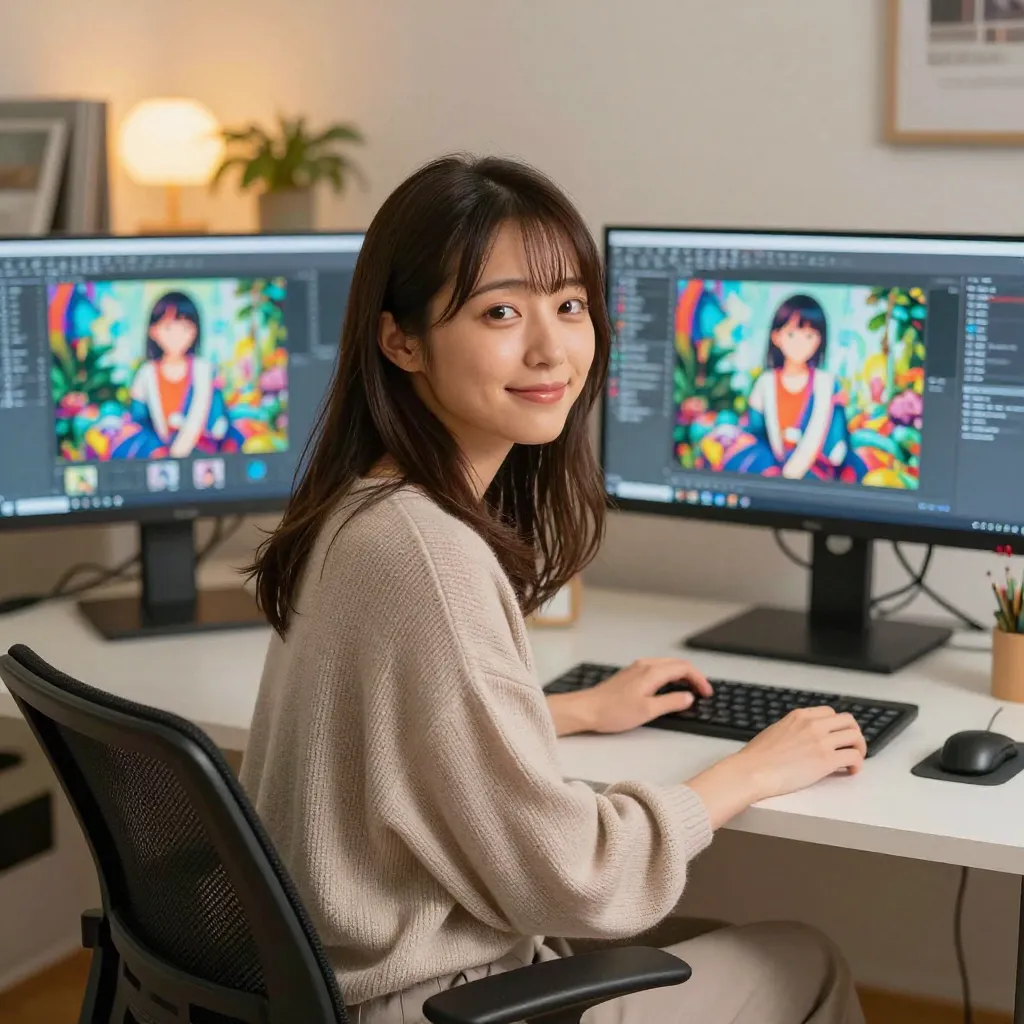
Interested in AI image generation but not sure where to start?
Do you need a high-performance PC? Do you need programming knowledge? How much does it cost? — This guide is for anyone with those questions, laying out a clear path from zero to your first generated image.
This article breaks it down into 3 steps so you can progress at your own pace.
Getting Started in 3 Steps
| Step | What You Do | What You Need |
|---|---|---|
| Step 1 | Generate an image in the browser | Just a PC and a browser |
| Step 2 | Build your own API environment | A RunPod account |
| Step 3 | Organize and manage generated images | Eagle (image management app) |
Just Step 1 is enough to begin. Get a feel for “what AI image generation is like” here before moving on to the next step as needed.
Step 1: Try It in the Browser First (ConoHa AI Canvas)
The top recommendation for your first experience is ConoHa AI Canvas.
It’s a cloud service that works entirely in your browser — no high-performance PC and no software installation required. Create an account and you can start AI image generation immediately.
Key points about ConoHa AI Canvas:
- Fully browser-based (works on smartphone too)
- Japanese UI — easy to navigate
- Entry plan starts at ¥990/month
- Supports z-image-turbo (a fast AI image generation model)
What to Learn Here
- How to enter prompts — describing the image you want in English text
- Adjusting parameters — settings that control output like image size and seed value
- The basic generate → review → adjust cycle — the process of tweaking prompts and experimenting
For detailed registration and usage instructions, the following article walks you through it step by step.
Read ConoHa AI Canvas Getting Started Guide and try generating your first image.
You’re good here when: You’ve entered a prompt in ConoHa AI Canvas and successfully generated one AI image.
Step 2: Use It Seriously (RunPod Serverless)
Once you’ve got the hang of image generation with ConoHa AI Canvas, here’s the next step.
“I want more freedom to choose models and workflows,” “I want to generate large volumes,” “I want to automate it via API” — when those needs emerge, RunPod is your answer.
Why RunPod?
| Item | ConoHa AI Canvas | RunPod Serverless |
|---|---|---|
| Difficulty | Easy (fully browser-based) | Somewhat advanced |
| Customization | Models provided by the service | Choose your own models and workflows |
| Pricing | Monthly flat rate | Pay-per-use |
| Volume generation | Monthly image limit | No limit |
| API integration | None | Available as an API endpoint |
RunPod Serverless is pay-as-you-go — no charges when idle. If you only generate a few hundred images per month, it can be cheaper than ConoHa’s entry plan.
How to Get Started with RunPod
The following article covers everything from creating a RunPod account to building the Serverless environment in detail:
Complete Guide to Running z-image-turbo on RunPod Serverless
The article covers account creation, endpoint configuration, sending API requests, and cost optimization.
You’re good here when: You’ve sent an API request to RunPod Serverless and successfully generated one image.
Step 3: Manage Your Generated Images (Eagle)
Once you keep generating AI images, you’ll accumulate hundreds to thousands of images in no time.
“Where did that image go that I generated with that prompt?” “What was the seed value?” — before that happens, setting up an image management system makes things much smoother.
The recommended tool is Eagle, an image management app.
What makes Eagle convenient:
- Import images via drag and drop
- Organize with tags and folders
- Add notes per image (great for recording prompts and parameters)
- Can also auto-register via API (details in a separate article)
With AI image generation where you deal with large volumes of images, having a system for “managing” as well as “generating” makes a significant difference in workflow efficiency.
Try Some Prompts
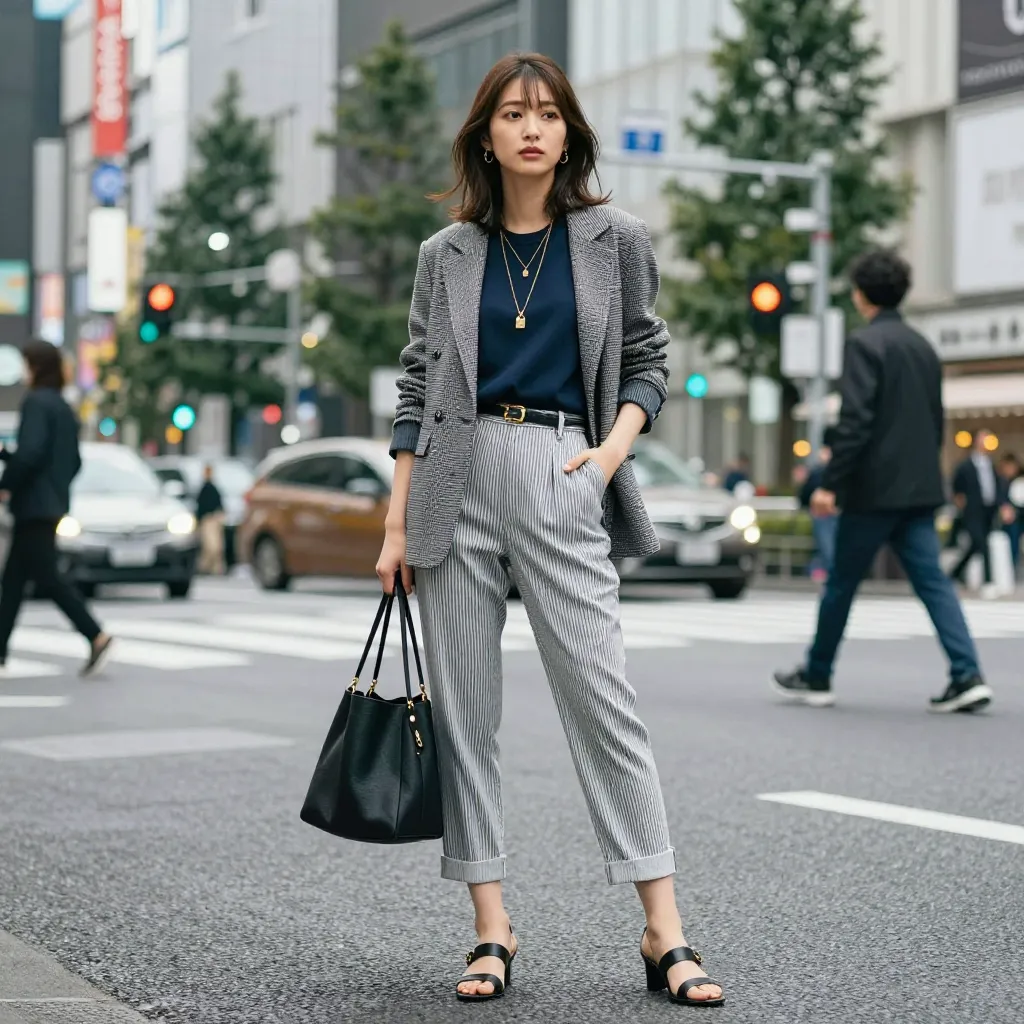
Once your environment is set up, try out various prompts. This blog publishes verified prompt collections tested with z-image-turbo:
- Portrait Prompt Collection — Basic prompts for generating realistic Japanese female AI portraits
- Expression Prompt Collection — 8 expression types from smiling to sleeping
- Pose Prompt Collection — Examples and prompt designs for 12 situations
- Lighting Prompt Collection — 8 lighting variations with the same subject
- Gravure Prompt Collection — Swimsuit, lingerie, and body line expression
For anyone wanting to learn the basics of prompt writing, also check out Prompt Best Practices.
Summary
AI image generation might sound like it “requires a high-performance PC” or “requires programming,” but in reality you can start with just a browser.
- Start by generating 1 image with ConoHa AI Canvas
- When you want more freedom, go full-scale with RunPod Serverless
- As images pile up, manage them with Eagle
No rush — work through it from Step 1 at your own pace.

![[Beginner's Guide] Getting Started with ConoHa AI Canvas | Using z-image-turbo in Your Browser](/tutorials/conoha-ai-canvas-guide/cover.webp)