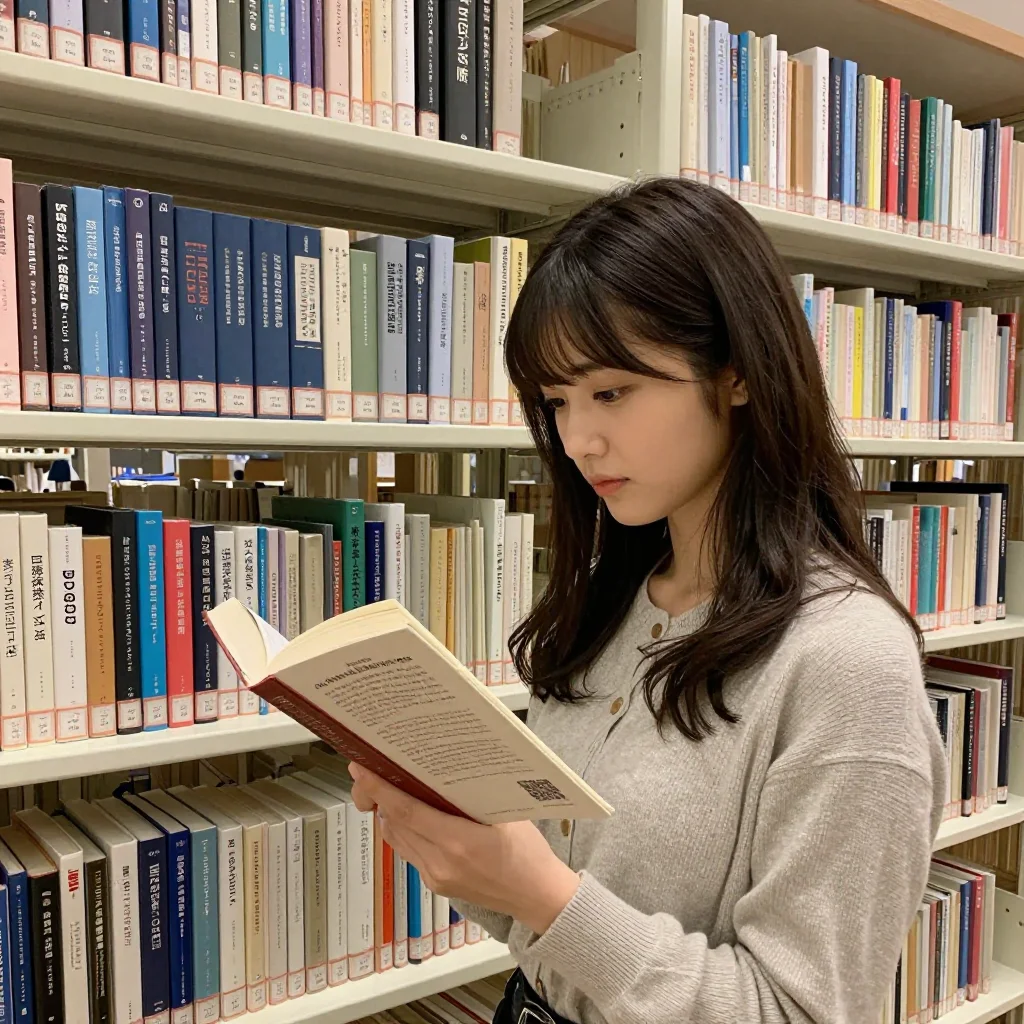
Have you ever felt like “I can’t get the image I want” with AI image generation?
The truth is, prompts follow clear rules. Understanding these rules alone can have a major impact on the quality of generated images.
This article covers the basic prompt rules common to Stable Diffusion-based models, including z-image-turbo.
Prompt Word Order Rules
Different positions in a prompt have different levels of influence. This comes from how CLIP (the text encoder) processes prompts.
The Beginning Is Most Important
Elements written at the start of a prompt are most strongly reflected in the generated image. I actually ran experiments on z-image-turbo using the same seed (seed=42) and the same elements, only changing word order.
Experiment 1: Swapping the order of “portrait” and “cafe”
| portrait first | cafe first |
|---|---|
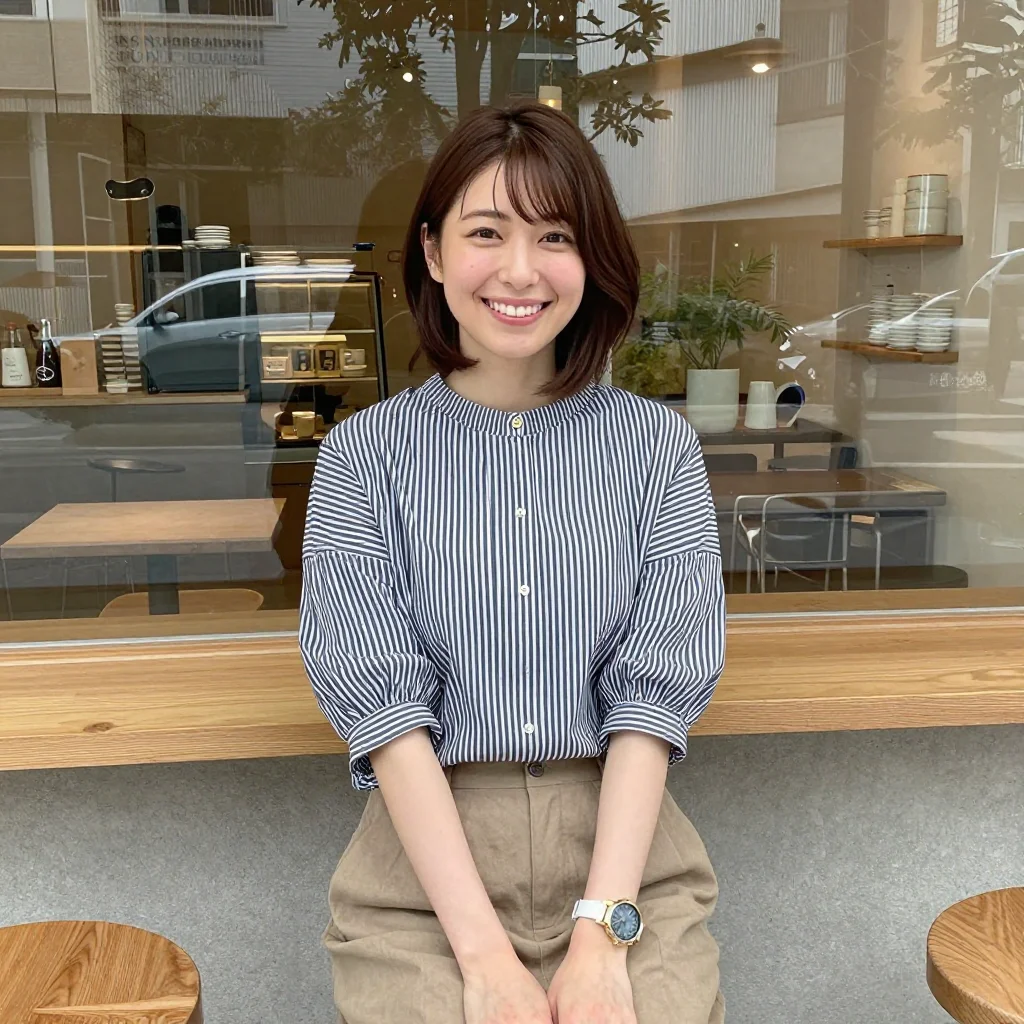 | 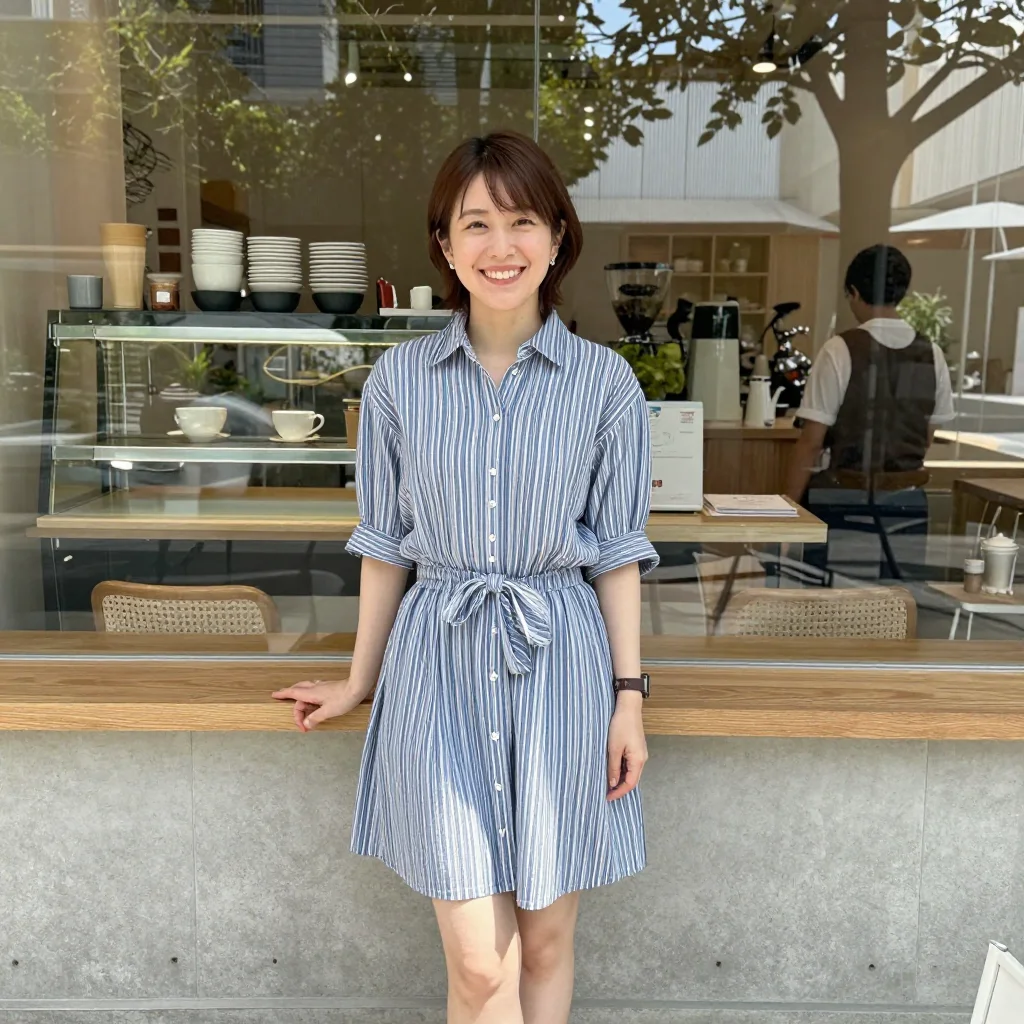 |
Result: Portrait-first (A) gives a bust-up, subject-centered composition. Cafe-first (B) pulls back slightly, with the subject visible from about knee height. The leading element influences the overall composition of the image.
Experiment 2: Changing the leading style keyword
A comparison where only the leading style keyword is changed (seed=42). This experiment demonstrates that the choice of style keyword placed first determines the overall direction of the image — not just word order, but the actual keyword selection.
| photorealistic first | anime illustration first |
|---|---|
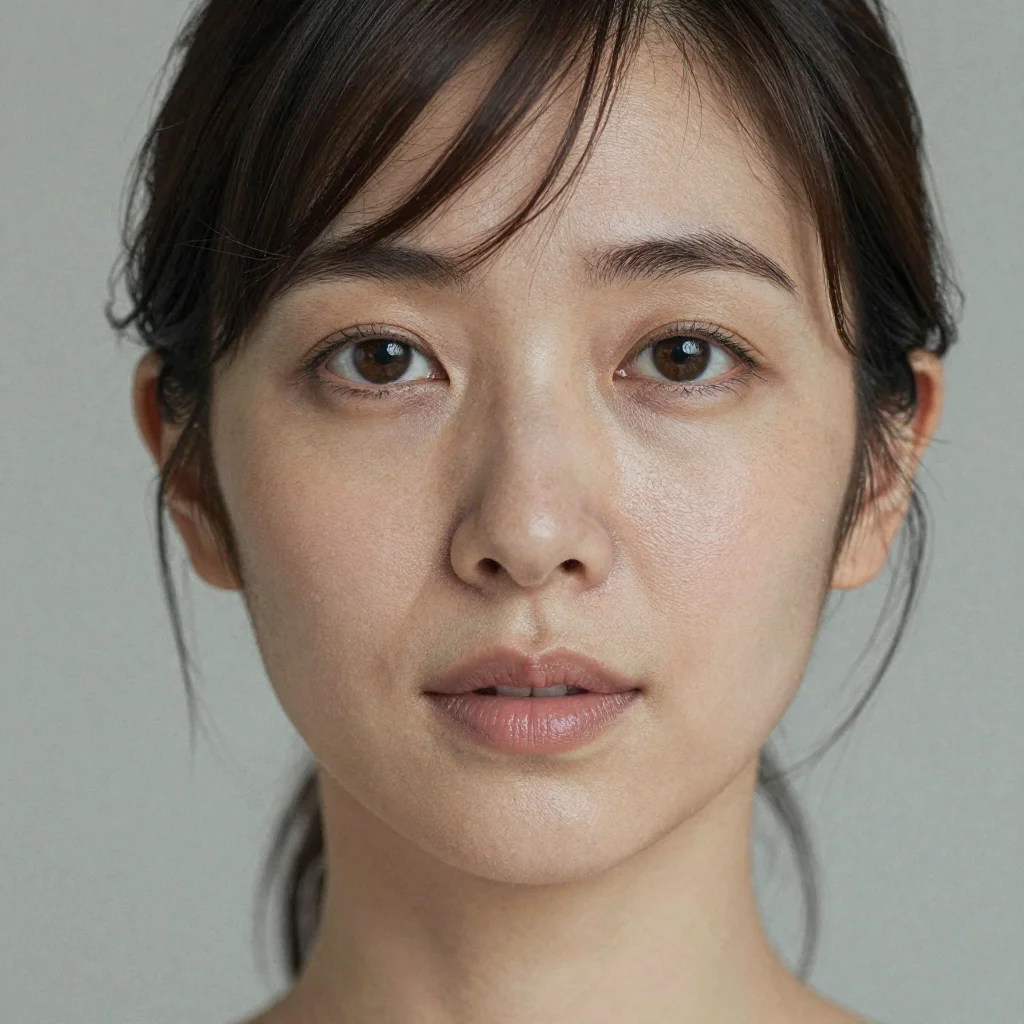 | 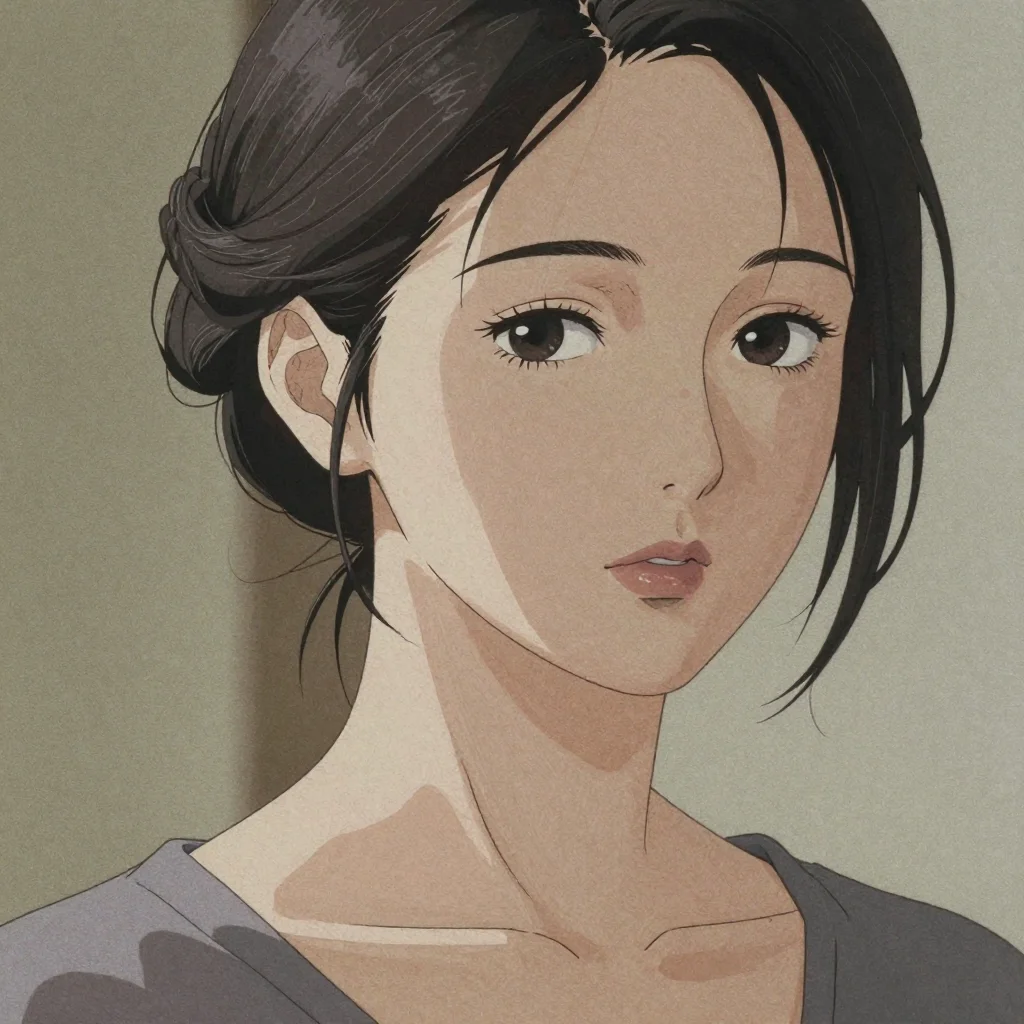 |
Result: Changing the leading style keyword transformed the image from a photo with realistic skin texture to an anime-style illustration. The remaining elements (detailed skin texture, 85mm lens, etc.) are identical, but the choice of style keyword placed first determines the overall direction of the image. Note that this experiment is not a simple word-order swap but an actual keyword substitution — please interpret it as demonstrating the magnitude of style keyword influence.
About the Influence of the End
Due to CLIP’s positional encoding, elements at the end also carry some influence. Middle portions tend to have relatively weaker influence. However, this effect has not been experimentally verified in this article — it is presented as a generally discussed tendency.
Beginning (most important) → Middle (weaker) → End (some influence)
Therefore, the prompt structure should be:
- Beginning: Subject/theme (what to generate)
- Middle: Supplementary elements (outfit, pose, props, etc.)
- End: Quality/technical settings (camera, lighting, image quality instructions)
In this example:
- Beginning:
portrait of a beautiful Japanese woman in her 20s(subject) - Middle:
long black hair, white blouse, sitting in a modern cafe(supplementary) - End:
shallow depth of field, 85mm lens, professional photography(quality)
CLIP’s 75-Token Limit
In most Stable Diffusion-based models, CLIP processes prompts in 75-token chunks. Exceeding 75 tokens splits the prompt into the next chunk.
- The first chunk (tokens 1–75) has the strongest influence
- Very long prompts may see the latter half have weaker effects
- Keep important elements within the first 75 tokens for best results
In English, 1 word ≈ 1–2 tokens. 75 tokens is roughly equivalent to 40–60 words.
Concrete examples of token counting
The CLIP tokenizer (BPE method) maps common English words to 1 token each, while uncommon words or compound words are split into subwords. “Word count” and token count do not match, so be careful.
| Input | Token split | Token count |
|---|---|---|
photo | photo | 1 |
woman | woman | 1 |
yukata | yuk + ata | 2 |
bokeh | bo + keh | 2 |
vignette | vig + nette | 2 |
rumpled | ru + mp + led | 3 |
close-up | close + - + up | 3 |
20yo | 2 + 0 + yo | 3 |
, (comma) | , | 1 |
. (period) | . | 1 |
Technical terms and English words derived from Japanese (yukata, bokeh, etc.) tend to be split into subwords, making actual token counts 1.3–1.5 times the word count. You can measure accurately with Python’s transformers library:
from transformers import CLIPTokenizer
tokenizer = CLIPTokenizer.from_pretrained("openai/clip-vit-large-patch14")
tokens = tokenizer("your prompt here")
print(len(tokens["input_ids"]) - 2)  # Token count excluding BOS/EOS
Emphasis Syntax
Many image generation UIs allow you to numerically adjust the influence of specific elements using (element:weight) syntax.
Basic Syntax: (element:weight)
(smiling:1.4)     → intends to emphasize "smiling" influence by 1.4x
(background:0.7)  → intends to suppress "background" influence to 0.7x
- Default weight: 1.0 (when nothing is specified)
- Emphasis: values greater than 1.0
- Suppression: values less than 1.0
Commonly Cited Weight Value Reference
| Value | Intended effect |
|---|---|
| 0.5–0.7 | Significantly weaken |
| 0.8–0.9 | Slightly weaken |
| 1.0 | Default |
| 1.1–1.3 | Slightly emphasize |
| 1.4–1.5 | Strongly emphasize |
| 1.6+ | Excessive emphasis (risk of image breakdown) |
Experiment: Weight Emphasis Effects in z-image-turbo
Experiment 2-A: Comparing different weights for smiling
Compared only the weight of smiling with the same seed (seed=42).
| (smiling:1.0) | (smiling:1.4) |
|---|---|
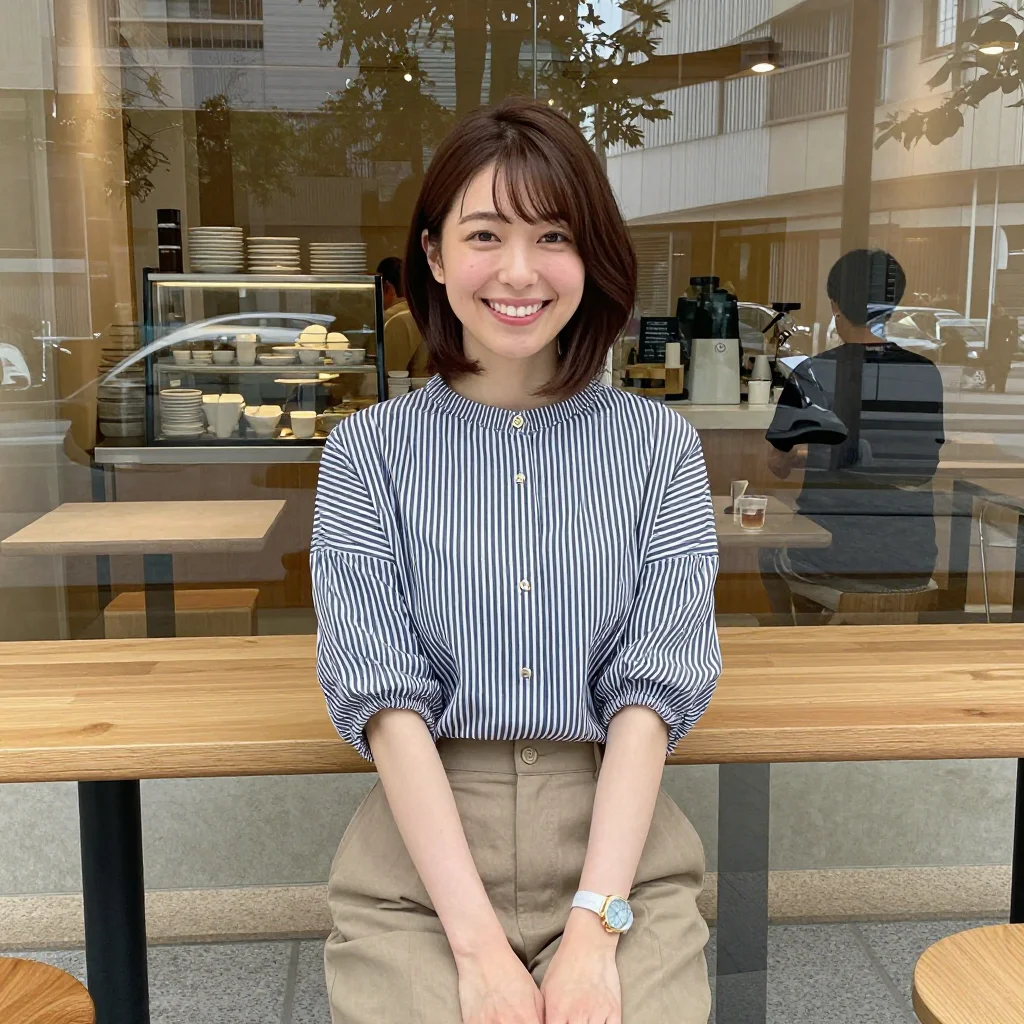 | 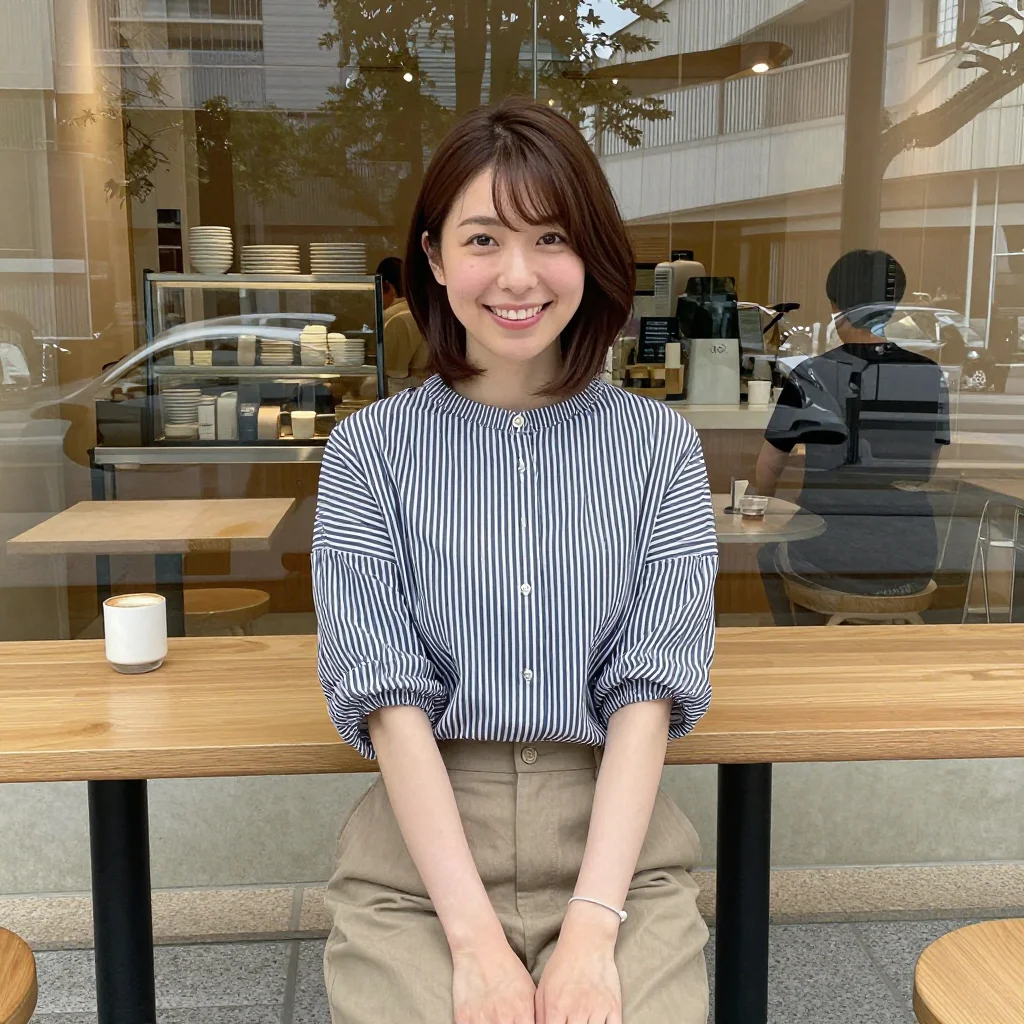 |
Result: No visible difference was confirmed.
Experiment 2-B: Additional verification across 5 categories × 3 seeds
Weight emphasis effects were also tested not just for smiling, but for composition, lighting, style, and subject attributes. Each category compared unweighted (equivalent to 1.0) against (element:1.4) across 3 seeds (seed=42, 7295072554507705269, 4517457392071889496).
| Category | Parameter | 1.0 vs 1.4 difference |
|---|---|---|
| Expression | smiling | No difference (3/3 seeds) |
| Composition | from below | No difference (3/3 seeds) |
| Lighting | strong backlighting | No difference (3/3 seeds) |
| Style | film grain | No difference (3/3 seeds) |
| Subject attribute | freckles | No difference (3/3 seeds) |
For detailed comparison images, see Weight Syntax Category Verification.
Result: In z-image-turbo, no change in attribute strength/weakness due to weight values was confirmed across all 5 categories.
Note: Even with a fixed seed, smiling and (smiling:1.4) produce changes in composition, outfit, and face. This is not the effect of weight values — it is a side effect from the entire token sequence changing due to the added parentheses, colon, and number.
Practical takeaway: To change output in z-image-turbo, word order and element selection (including or excluding an element, placing it at the start or end) is effective — not fine-tuning weight values.
Handling in Other Models
The above results are for z-image-turbo (a distilled model with CFG=1.0). Models with CFG greater than 1.0 (Stable Diffusion 1.5, SDXL, etc.) may have functional weight syntax. Check the documentation for the model you’re using.
Nested Parentheses for Emphasis
Some UIs support nested parentheses for emphasis:
(smiling)     → 1.1x
((smiling))   → 1.21x (1.1 × 1.1)
(((smiling))) → 1.331x (1.1 × 1.1 × 1.1)
In z-image-turbo, no effect has been confirmed for this method either.
About Negative Prompts
Negative prompts are a mechanism for specifying elements you don’t want generated, based on Classifier-Free Guidance (CFG).
Important: Negative prompts do not function in z-image-turbo. z-image-turbo is a distilled model operating at CFG=1.0, so the negative prompt mechanism does not work. For improving image quality in z-image-turbo, optimizing positive prompts is effective. See Prompt Best Practices for details.
For details on negative prompts in models with CFG > 1.0 (standard Stable Diffusion models, etc.), see Negative Prompt Guide.
Recommended Settings for z-image-turbo
z-image-turbo is a model known for fast generation.
Recommended Prompt Structure
[subject description], [supplementary description]
Since z-image-turbo produces realistic output by default, quality keywords like RAW photo or photorealistic are unnecessary (see verification results).
Recommended Parameters
| Parameter | Recommended value | Description |
|---|---|---|
| Steps | 8 | z-image-turbo can produce high-quality output with fewer steps |
| Sampler | euler | Fast and stable |
| CFG | 1.0 | Fixed. Negative prompts do not function with this setting |
| Size | 1024x1024 / 1280x720 | Standard to widescreen |
A ComfyUI workflow for z-image-turbo (with optimal parameter settings) is available in this article.
Summary
The three basic rules of prompts:
- Word order: The beginning is most important, the end also matters. Write in the order: subject → supplementary → quality
- Emphasis syntax: Emphasize important elements with
(element:1.3). 1.2–1.4 is the practical range - Negative prompts: Do not function in z-image-turbo (due to CFG=1.0). Improve quality by optimizing positive prompts
With these rules understood, proceed to the next steps:
- If you want to practice → See actual prompts in Prompt Examples Collection
- If you want to design your own prompts → Read How to Think About Prompt Design
- Verified prompt knowledge → Go to Prompt Best Practices
- If you want to set up your environment → Try it in your browser with ConoHa AI Canvas Getting Started Guide
References
The theoretical background behind this article’s claims, explained using the Ochiai Method:
- Paper Breakdown: CLIP — The CLIP model that vectorizes prompts. The origin of the 75-token limit (original paper)
- Paper Breakdown: Latent Diffusion Models — The foundation of Stable Diffusion. The diffusion process in latent space (original paper)
- Paper Breakdown: Classifier-Free Diffusion Guidance — The theoretical basis for negative prompts (original paper)
External links:
- ComfyUI Official Repository — Node-based Stable Diffusion UI
- z-image-turbo Official Site — Official documentation for the z-image-turbo model
![[Verified] Image Generation Prompt Best Practices](/tips/prompt-best-practices/cover_0_0000_4517457392071889496.webp)